


Karina

Copyright © 2014 Criss-AC.net. All rights reserved.

Karina

Copyright © 2014 Criss-AC.net. All rights reserved.

Karina

Copyright © 2014 Criss-AC.net. All rights reserved.

Is it her?

Copyright © 2013 Criss-AC.net. All rights reserved.

In a world in motion [...]

Copyright © 2012 Criss-AC.net. All rights reserved.

Old Italian Fiat

Copyright © 2012 Criss-AC.net. All rights reserved.

Sunset in Marina di Carrara

Copyright © 2011 Criss-AC.net. All rights reserved.

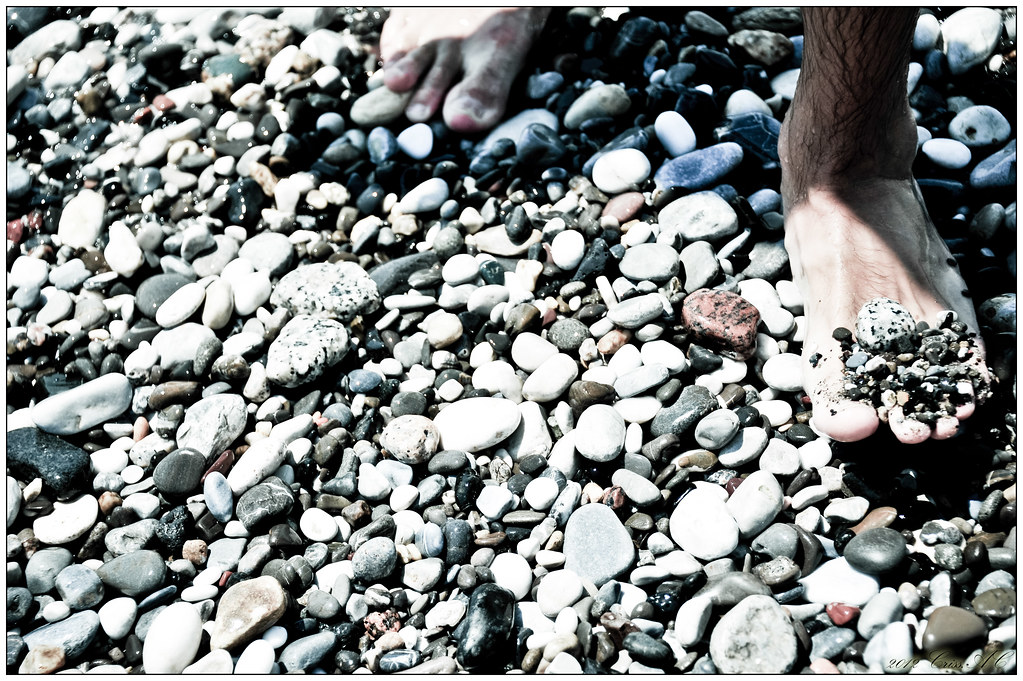
With feet in the water

Copyright © 2011 Criss-AC.net. All rights reserved.

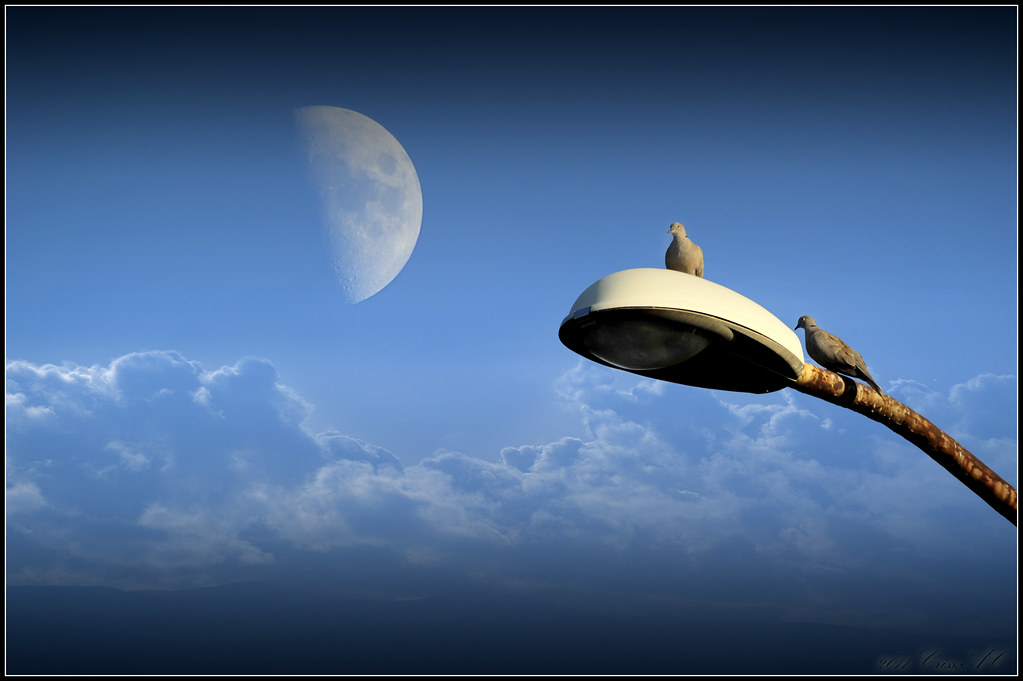
2 under 1 moon

Copyright © 2011 Criss-AC.net. All rights reserved.

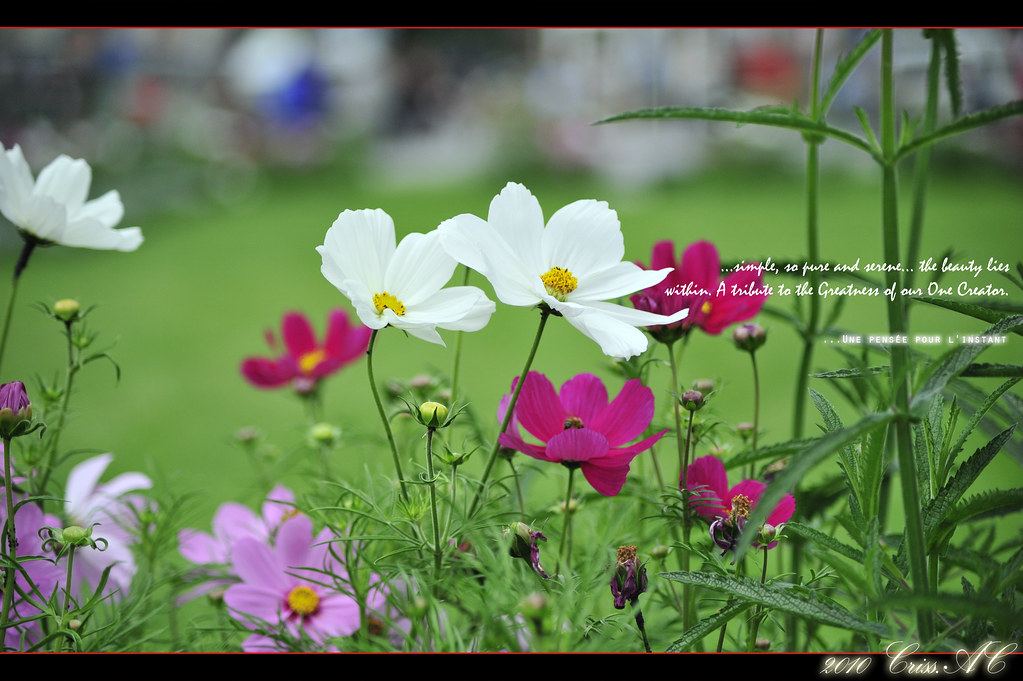
Harmony

Copyright © 2010 Criss-AC.net. All rights reserved.

Showing posts with label Windows 7. Show all posts

04 March, 2010

New Opera 10.50 menu bar

Hi folks, tonight I’ve just discovered the latest version of Opera. The v10.50 is finally released! And as I was too much thrilled by its looks and its new functionalities (check the change log on Opera.com), one thing I’ve noticed to be missing.

As many pro users of Opera out there, I’ve customized to its maximum, to be able to get the maximum of visuals and functionality from it. My previous version was v10.10. I’ve personalized most of the toolbars, tab-bars and so on. And when I installed the new 10.50 version I’ve chosen Upgrade from the setup menu (to keep all my settings intact).

But! this is where “trouble” came from. Its new design didn’t seem to go on well with my settings customized for v10.10. My hardest trouble seemed to be finding the menu bar, to access the Tools –> Preferences settings (which is actually what I care for).

After hours of searching and researching, I’ve discovered a way. I am going to share the way to get back your traditional old-school menu which is now gone in v10.50.


I don’t know if you’re able to see all the details from the below screen shots in the size of my blog, that’s why I’ve made the pictures clickable to get the full-size version once you click them. That’s how my new Opera looked like once I’ve upgraded from v10.10. No menu bar at all. At this stage, impossible to access it.Click to download the full-size version 

To get access to the menu you will have two options. Either you reset the tab bar to its defaults, or you drag and drop the menu button from the Customization menu. I’ve chosen Reset to default. The steps: Right click anywhere on the tab bar, choose Personalization, then Reset to Default (I am using the French version, so I hope I am giving the exact translations).Click to download the full-size version

And this is how it will look like once it is reset to its default appearance. You will notice a little red button with a half white O on it, in the left side of the tab bar.Click to download the full-size version

That’s the standard “menu” in Opera 10.50. You would have gotten this if you were to install a fresh copy, with default settings. To get this button as a menu bar, as in most Windows pre-7 applications, follow the steps in the picture below:Click to download the full-size version

Once you click Show menu as a bar (…? hope I got it right from French), it will turn out like this. However, please be advised that the menu bar is now Win 7 friendly. Does not support the Aero feature which is – as a matter of fact – present in rest of the Opera. But not the menu bar. It looks like this, non-transparent and boring:Click to download the full-size version

And if you agree that indeed it destroys the good looks of the shinny new Opera, there is one way to get rid it of it. Either to place it back as a button in a toolbar(which you can drop anywhere you like), or remove it completely. To do so, click File, then uncheck the box saying Show the menu as a bar. Once you do that, it will be placed as a button as you saw in a picture above.Click to download the full-size version

That’s it. Hope it will come in handy to other people who might have had same troubles as me. Enjoy your new Opera!

28 February, 2010

A dice in Photoshop

Spent half of the yesterday’s night and most of this Sunday on what you see below:

(Picture is clickable, it will take you to its Flickr page)

Click to see it on Flickr

The dice used in this project was created in POV-Ray by unknown author. What you see here is pure Adobe Photoshop CS4. Full version 1920x1080 (without logo) is available for download here. Thanks for watching!

27 February, 2010

Available wi-fi networks in my flat

That’s one:

Available wifi networx1 

That’s Deathstar. Now there is one more available network:

Available wifi networx2And Deathstar sux :D


These are my creative Czech neighbors, with password-protected networks. Excepting one of the “stars”, though.

13 January, 2010

Goo Google!

After spending a considerable amount of time working, I finally managed to come up with two other wallpapers. Please find them below!

As usual, I work on 1080p resolution (1920x1080) to match the size of my monitor.

Below the text is taken from Google Czech Republic. Text is in English.

Google_Anime_Girl_Wallpaper_1920x1080 HDTV 1080p

Available for download here.
Download the 1280x1024 version here.

Here the text is taken from Google Japan. Text is partially English and partially Japanese.

Google_JP_Anime_Girl_Wallpaper_1920x1080 HDTV 1080p

Available for download here.
Download the 1280x1024 version here.

22 October, 2009

Oct. 22, 2009!

You know, boys ‘n gurls, what day is today? Is the day when Windows 7 officially comes out!

Details on the blog of Windows team: http://windowsteamblog.com/blogs/windows7/archive/2009/10/21/windows-7-s-big-day-tomorrow-new-offers-announced.aspx

10 September, 2009

Windows 7 shortcuts


This post is for those of you who use Windows 7. Still unreleased though, but at this point is very stable and cool. Below you’ll find a list of shortcuts that are quite useful. Some of them will run on other versions of Windows, such as XP and Vista. Hope you’ll find them useful!

Win + Up Arrow Maximize the current window
Win + Down Arrow Restore down or minimize current windows
Win + Left Arrow Dock the current window to the left half of the screen
Win + Right Arrow Dock the current window to the right half of the screen
Win + [number] Activate and run the program pinned on Windows 7 Taskbar, running program won’t be affected
Win + Home Minimize all but the current window
Win + Space Makes all windows transparent so you can see through to the desktop
Win + Pause/Break Open System Properties
Win + Tab Flip Aero 3D [press Tab to cycle through windows]
Win + B Move focus to notification tray (the right-most portion of the taskbar)
Win + D Show/ Hide desktop
Win + E Windows Explorer is launched
Win + F Search
Win + G Bring all gadgets on top and foreground
Win + L Lock Computer
Win + M Minimize all windows
Win + P Open the projection menu (generally used for laptops connected to projectors)
Win + R Run Command is launched.
Win + S OneNote Screen Clipping Tool
Win + T Show preview thumbnail of running applications in Windows Taskbar one by one without mouse over
Win + X Mobility Center
Win + # Quick launch
Win + = Magnifier
Win + [+/ –] Enables the magnifier and zooms in/ out
Win + Shift + Up Arrow Maximize vertical size
Win + Shift + Down Arrow Restore vertical size
Win + Shift + Left Arrow Jump to left monitor
Win + Shift + Right Arrow Jump to right monitor
Win + Shift + M Undo all window minimization
Win + Shift + T Cycles backwards
Win + CTRL + F Opens the Active Directory Find Computers dialog
CTRL + Right Arrow Move the cursor to the beginning of the next word
CTRL + Left Arrow Move the cursor to the beginning of the previous word
CTRL + Up Arrow Move the cursor to the beginning of the previous paragraph
CTRL + Down Arrow Move the cursor to the beginning of the next paragraph
CTRL + Click A pinned taskbar icon to cycle through the program’s open windows (e.g. IE)
CTRL + Win + Tab Persistent flip 3D
CTRL + Shift + an arrow key Select a block of text
CTRL + any arrow key + Spacebar Select multiple individual items in a window or on the desktop
CTRL + Shift + ESC Open Task Manager directly
CTRL + Shift + N Create new folder


Source: http://bharatbaba.com/blog/window7-shortcut-keys/